Mathematica Link for Excel
Bringing the Power of Mathematica to Excel
All of the power and sophistication of Mathematica. All of the familiarity and convenience of Excel. Mathematica Link for Excel eliminates the complexities of bridging the two programs, giving you the best of both worlds. With Mathematica Link for Excel, you can have it all.
Mathematica Link for Excel 3.8.0 requires Mathematica 14 or 15 and Microsoft Excel 2016 or newer. It is available for Windows 10 and 11. Earlier software and operating systems may be supported with a few limitations.
Mathematica Link for Excel adds over a thousand functions and options to Excel and lets you interactively explore them using the Mathematica function wizard. Displaying Mathematica graphics and typesetting in Excel is as easy as entering a function. Spreadsheets can now perform integration and differentiation, solve differential equations or do sophisticated data analysis using Mathematica's powerful statistics capabilities. Data and equations can be visualized in new and insightful ways that are not possible in Excel alone.

 Overview
Fitting, Visualization and Error Analysis with the Power of Mathematica
This one's easy: You own Mathematica. You own Microsoft Excel. You need Mathematica Link for Excel! Have the best of both worlds at your fingertips: all the power of Mathematica and all the convenience of Excel. Mathematica Link for Excel makes working with both programs seamless.
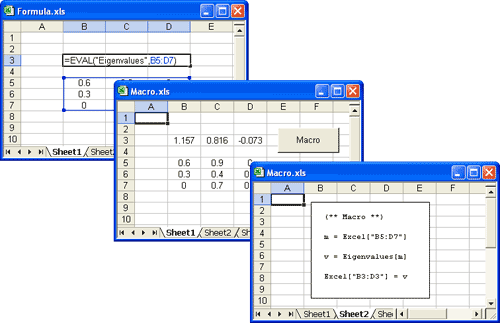
Forget about creating cumbersome temporary data files. With Mathematica Link for Excel, you can easily copy and paste data between Mathematica and Excel or experience unparalleled side-by-side use of both programs while you programmatically read and write data from Mathematica notebooks to open Excel workbooks. You can even convert Mathematica notebooks into Excel macros in just a few simple steps.
For Excel users, Mathematica Link for Excel adds over a thousand functions and options to Excel and lets you interactively explore them using the Mathematica function wizard. Excel formulas can suddenly perform symbolic computations, find complex roots, run statistical analysis and much more. Even displaying Mathematica's legendary graphics and typeset equations becomes as easy as entering an Excel formula. Go ahead. From a quick histogram to a 3D vector plot, Mathematica Link for Excel lets you visualize your data in ways not possible using Excel alone.
Key Features
Mathematica Link for Excel is a fully bidirectional link that can be used to:
- Copy and paste data between Mathematica and Excel
- Write Mathematica code that interacts with and automates Excel
- Build custom Excel import and export routines in Mathematica
- Call Mathematica code as if it were an Excel macro
- Create spreadsheet formulas that call Mathematica from within Excel
- Display Mathematica graphics and typeset expressions inside Excel
Features
Mathematica Link for Excel consists of two main components, the ExcelLink package and the MathematicaLink add-in. These components work together to provide full two-way connectivity between Mathematica and Excel.
ExcelLink Features
- A suite of Mathematica functions that allows you to:
-
- Read and write data to Excel ranges
- Display graphics, typeset equations and formatted output in Excel
- Create customized Excel import and export routines
- Develop Excel functions and macros in Mathematica
- A special clipboard window that allows you to easily copy and paste data between Mathematica and Excel
- Integrated documentation in the Mathematica Help Browser
The ExcelLink component of Mathematica Link for Excel lets Mathematica users efficiently exchange data between Excel and Mathematica and easily create Excel interfaces for Mathematica-based applications. To use ExcelLink from Mathematica, simply load the ExcelLink package.
Functions
ExcelLink provides over 50 functions that allow you to access Excel functionality directly from within Mathematica.
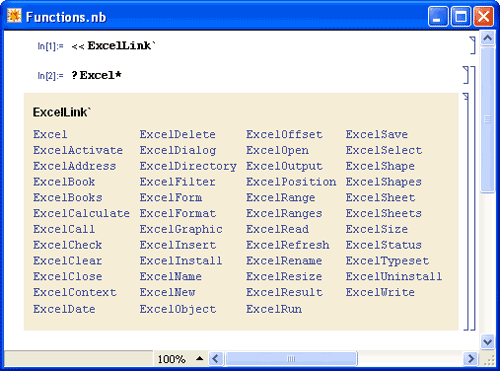 Display Excel functions.
Interactivity
ExcelLink helps create a seamless working environment between Mathematica and Excel to perform sophisticated data analysis and visualization.
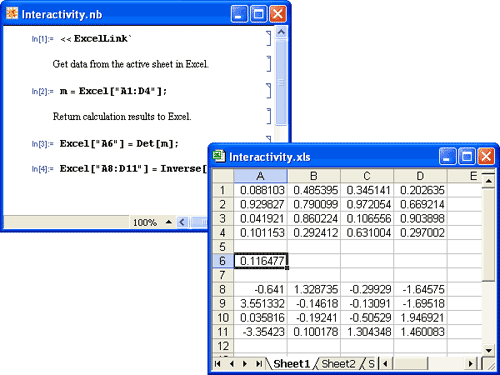 Read and write data to open Excel workbooks directly from within Mathematica.
Automation
Automated updates to Excel workbooks from within Mathematica enable you to build powerful modular applications using Mathematica Link for Excel.
Automatically open, modify, save and close existing Excel workbooks.Clipboard
Intelligent clipboard functionality allows you to easily move data from Mathematica to Excel, and vice versa.
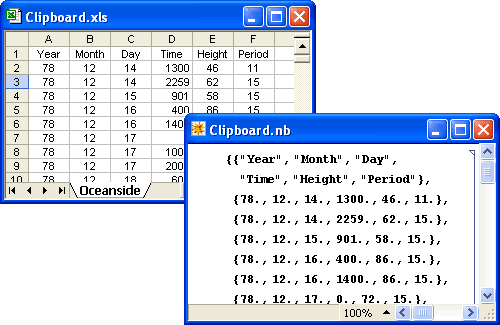 Use the clipboard to copy and paste data between programs.
MathematicaLink Features
- A set of worksheet functions that allows you to use Mathematica functions in Excel formulas
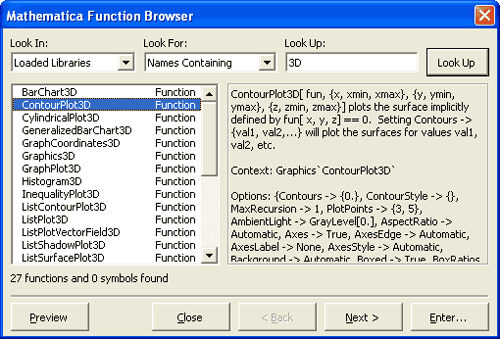
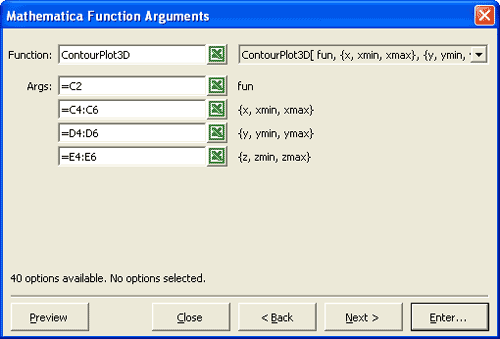
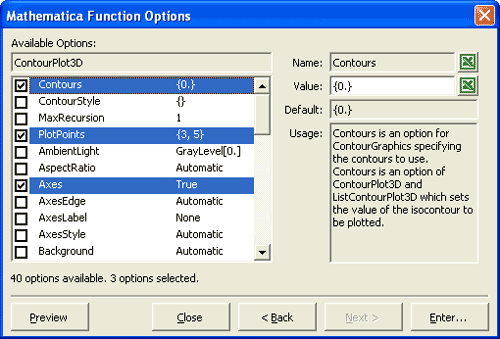
- A Mathematica function wizard to help you learn about and enter Mathematica functions
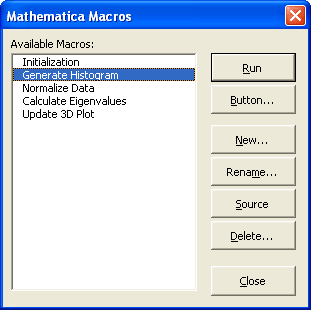
- A Mathematica macros window that allows you to turn Mathematica code into Excel macros
The MathematicaLink component of Mathematica Link for Excel gives Microsoft Excel users immediate access to Mathematica's computational power and graphics capabilities. Just load the MathematicaLink add-in to use it from Excel.
Commands
Intuitive user interface components allow you to communicate with Mathematica from Excel.
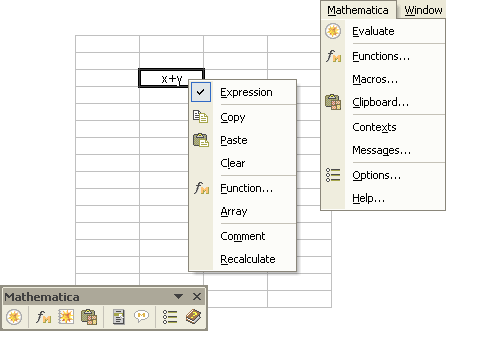
Interact via the Mathematica toolbar, the Mathematica context menu and the Mathematica menu.
Clipboard
An intelligent clipboard makes it easy to eliminate copy-and-paste errors and to clean up data.
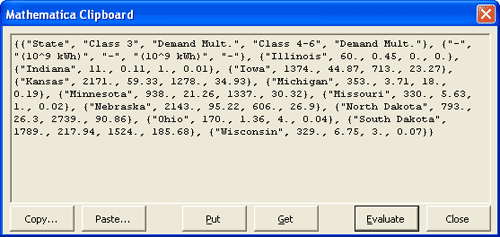
Copy data using the interactive Mathematica clipboard window.
What's New
- Compatibility with Mathematica 14.2
- Compatibility with Mathematica 12.1
- Compatibility with Mathematica 12.3, 64-bit installers
- Compatibility with Mathematica 12.1
- Compatibility with Mathematica 12
- Compatibility with Excel 2016 (including Excel 2010 64-bit version)
- Updated Excel UI to support Office Fluent UI
- Improved contextual menu support in Excel 2007 and newer to include a submenu for MathematicaLink in Excel (substituting Shift + right-click to display the Mathematica context menu in Excel 2007 or newer)
- Other minor improvements and fixes
- Compatibility with Mathematica 11
- Compatibility with Mathematica 9 and 10
- Compatibility with Mathematica 8
- Compatibility with Excel 2010 (including Excel 2010 64-bit version)
- ExcelShare function allows sharing a kernel between Excel and Mathematica
- VBA support routines: MathematicaSet, MathematicaRun and MathematicaGet
- Support for reading and writing Excel comments (including writing to a range using CellLabel["my comment"])
- Shift + click the Mathematica Evaluate button to close link and bring up the Mathematica connection window
- Shift + right-click a range to quickly display the Mathematica context menu without turning on Mathematica contexts
- Updated toolbar and menu icons
- Improved Mathematica connection management (self-healing link and new connection options window)
- Improved handling of Mathematica connection exceptions and evaluation interrupts
- Improved Mathematica messaging (messages now returned in real time)
- Improved "Display Message Box" option now only applies to Print[] output
- Improved workbook initialization code evaluation and management
- Improved common multi-workbook initialization now supported using an init.m file in same directory
- Improved support for long-running Mathematica macros
- Improved automatic workbook relinking and add-in startup logic
- Other minor improvements and fixes
- Compatibility with Mathematica 7, including Mathematica 7–based icons
- ExcelOpen, ExcelSave and ExcelDialog support for Excel 2007 .xlxs, .xlsm and .xlsb files
- ExcelWrite support for writing Grid[{{1,2,3},{4,5},{6}}, opts], e.g. ANOVATable output
- ExcelFormat["A:C", "AutoFit"] to automatically adjust column width
- Support for 64-bit Windows and 64-bit Mathematica connecting to 32-bit Excel
- Improved message print format in Mathematica 6 and 7
- Fixed bug where some workbooks with macro buttons do not relink correctly
- Improved ExcelInstall[Visible -> True] method for launching visible instance of Excel
- Improved Mathematica macros dialog method of inserting code boxes and buttons
- No "kernel connection closed" dialog if initialization code ends with Quit[]
- Other minor improvements and fixes
- Compatibility with Mathematica 6
- Compatibility with Excel 2007
- Compatibility with Windows Vista
- Keyboard shortcuts for Excel toolbar commands
- Additional Excel message–related options
- Restored backward compatibility with Excel 2000
- Improved editing of existing functions using the Mathematica function wizard
- Improved compatibility with workbooks originally built with Version 2.x of Mathematica Link for Excel
- Improved printable PDF documentation
- Display of typesetting and formatted output in Excel
- Ability to create Mathematica-based macros
- Suite of Mathematica functions to interact with and automate Excel
- Improved set of worksheet functions allowing you to build and evaluate Mathematica expressions in Excel even more easily.
- Increased worksheet function speed. Worksheet functions now calculate up to eight times faster.
- Increased worksheet function reliability. Worksheet functions are now robust enough for the most demanding spreadsheet applications. Automated tests have performed billions of continuous evaluations without errors.
- Improved worksheet function error handling. Dependent evaluations are now suppressed through the use of native Excel error codes.
- Improved Mathematica message handling. Messages are now displayed and stored in a nonmodal window. You can leave this window open, scroll through multiple messages, find the source of a message and even save messages to a log file.
- Easier linking. If a Mathematica kernel is available on your machine, it is automatically located. The Start/End Link button is now a more powerful Evaluate button that can be used to reevaluate a workbook, interrupt current evaluations or, by holding Shift, end a link without displaying a confirmation dialog.
- Enhanced Mathematica function wizard allows you to browse for functions by category, explore options and edit existing formulas.
- Standard packages are now automatically declared, by default, and can be browsed directly within the function wizard. This functionality replaces the libraries dialog.
- Improved copying and pasting is faster and more robust. View and modify your copied data directly in the new Mathematica clipboard window, which replaces the kernel dialog. You can also type Mathematica expressions directly into the clipboard, evaluate them and paste them wherever needed.
- Improved sharing of workbooks with others—just click Unlink in the Mathematica Options -> Workbook tab. If colleagues have Mathematica Link for Excel, they will be automatically prompted to relink formulas when they open your workbook.
Who's It For?
Mathematica Link for Excel is an essential tool for finance professionals, business professionals, life scientists, engineers, physical scientists, social scientists, educators and others who want to use Excel and need to expand its computational and graphical capabilities. But don't just take our word for it. Here's what some Mathematica Link for Excel reviewers and users have to say.
"All in all, a delight to use." —Felix Grant, Scientific Computing World"I am very satisfied with Mathematica Link for Excel. I think the product has a full feature set, and I would highly recommend it to other financial engineers." —Peter Scherer, Trader, Ubique, Inc."I would encourage others to use Mathematica Link for Excel as a bridge to the powerful functionality of Mathematica." —David R. Collins, Researcher in Mathematical Psychology, Indiana University
In fact, Mathematica itself is relied upon by millions of enthusiastic professionals and students in science, technology, engineering, finance, medicine, research and education around the world. Find out what's being said about Mathematica.
Examples
Mathematica Link for Excel is a versatile application package that can be used to solve problems in a wide variety of areas. This section provides a few examples that demonstrate the power and flexibility of Mathematica Link for Excel.
Finance
Mathematica Link for Excel lets you easily process financial data and perform sophisticated analyses by using custom functions written in Mathematica. You can also use Mathematica-based macros to automatically calculate and visualize your data in Excel.
Custom Mathematica Functions
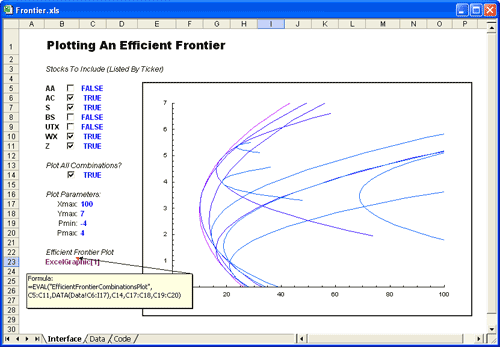
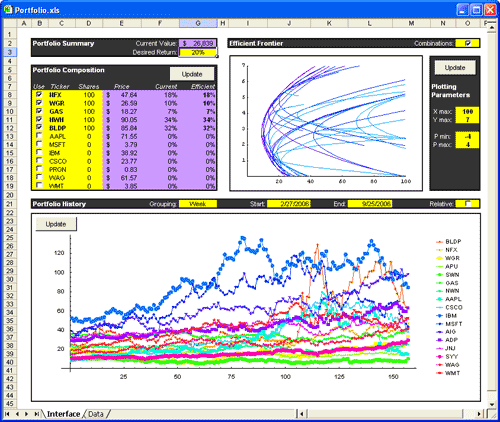
In finance, the efficient frontier is the boundary of points that define the minimum variance achievable from a set of stocks for any given return. Here, we calculate and display an efficient frontier for a set of selected stocks. The information for these stocks is stored on the Data sheet in the workbook. Storing the functions apart from the data they operate on allows the investment logic to be more easily shared, reused and maintained.
 Download Example
Mathematica-Based Macros
Here, Mathematica calculates an optimal portfolio composition, visualizes the efficient frontier and displays the historical stock prices for the stocks selected. A Mathematica-based macro is stored in the Excel workbook, inside an initialization code box. One click of the Mathematica Evaluate button runs the code and updates all Mathematica calculations.
Download Example
Management
Mathematica Link for Excel easily tackles critical management problems regarding staffing, transportation and delivery. Here, a minimum-cost strategy for staffing to meet a 24-hour productivity requirement is determined—perhaps a quality control department supervising an assembly line, or representatives for a bank's customer service number. Each type of employee (here full-time, part-time and full-time employees working overtime) has a productivity profile (the number of inspections or phone calls they can handle every shift) and a salary amount.
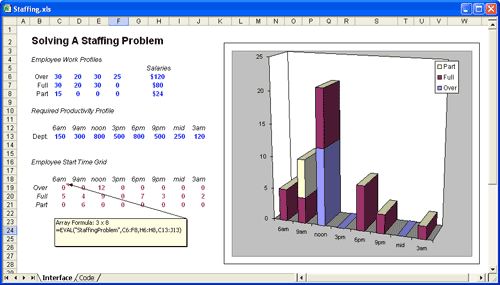
From the provided input parameters, Mathematica computes the optimal number of employees and the times at which they should start work. An Excel bar chart is used to display the optimal strategy. Having linear optimization logic embedded in a custom Mathematica function lets you optimize your worksheet with a function call. You can modify input parameters as frequently as you choose, and the new optimum will be instantaneously updated—no need to run any macros.
Download Example
Engineering
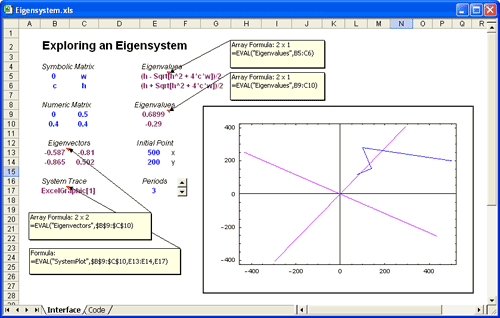
Engineering calculations that Excel is unable to perform alone can be done using Mathematica. In this example, we calculate eigenvalues and eigenvectors for a 2x2 matrix. Concise symbolic results are obtained from the matrix, as shown at the top of the worksheet. In the rest of the worksheet, we use numeric calculations to determine system behavior, and a Mathematica graphic plots the system's eigenvectors and projected path.
On its own, Excel has a few hundred worksheet functions. Mathematica Link for Excel extends your reach to thousands of Mathematica functions, covering diverse areas of mathematics, engineering and science.
Download Example
Industry
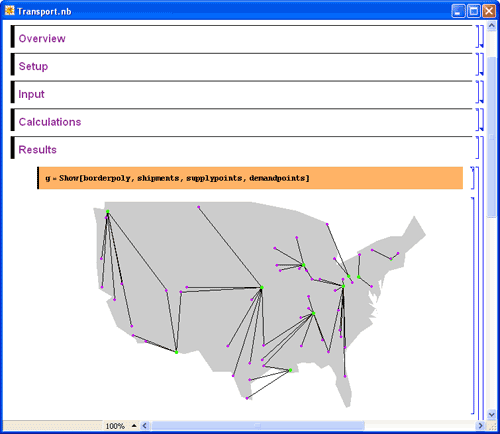
Industry is driven by supply and demand. Here, Mathematica reads supply-and-demand data for selected US cities from an input sheet in the workbook, calculates an optimal shipping strategy and returns a visualization of the solution to a separate output sheet in Excel.
This example shows how Mathematica-based macros can also be run from within Mathematica notebooks. You can open the workbook and notebook files side by side, then evaluate the initialization code in the Mathematica notebook.
Download Example